How to schedule a calendar event
Add a meeting, site visit, or appointment to the Kaliun calendar.
Calendar events are for anything time-bound: site visits, client meetings, inspections, team standups.
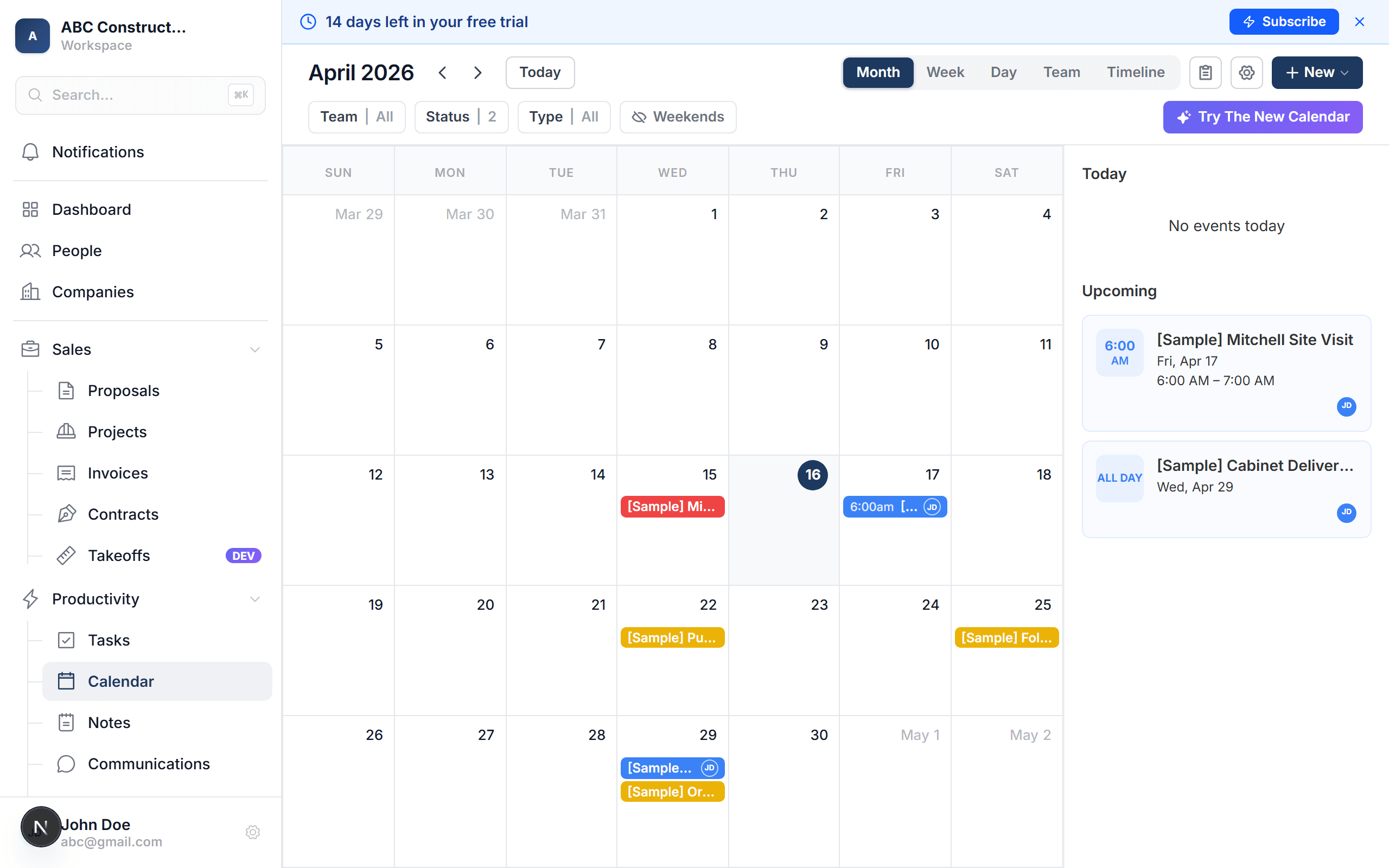
Click a time slot (or "New Event")
Either click directly on the calendar at the time you want, or click the blue New Event button in the top-right.
Fill in the event details
- Title — "Site walk — Smith kitchen"
- Start and end time — or check "All day"
- Location — a physical address or a Zoom link
- Attendees — pick team members, or add external emails
- Linked record — optional: tie it to a Person, Project, or Proposal
- Reminder — 10 min / 1 hr / 1 day before (configurable)
- Description — any extra notes or an agenda
Click "Save"
The event appears on your calendar and on every attendee's calendar. Anyone you invited gets an email with the event details and a button to confirm or decline.
Google Calendar sync
If you've connected Google Calendar, the event also pushes to your Google Calendar automatically. Changes flow both ways — edit in Kaliun or Google and both stay in sync.
Moving or resizing an event
On the calendar view, click and drag an event:
- Drag the middle to move the whole event to a new time
- Drag the bottom edge to change the end time (make it longer/shorter)
- Click to open the edit form for anything more complex
Recurring events
For standing meetings (weekly standup, monthly review), check Recurring when creating the event and pick a frequency. Kaliun creates the series and you can edit a single instance or the whole series.
Tip: link events to projects or contacts. Every site walk linked to "Smith Kitchen" shows up on that project's activity timeline — great for disputes and audit trails.