Your CRM
How to add a contact
Add a new lead or client to your CRM in under 30 seconds.
Every job starts with a contact. Here's how to add one.
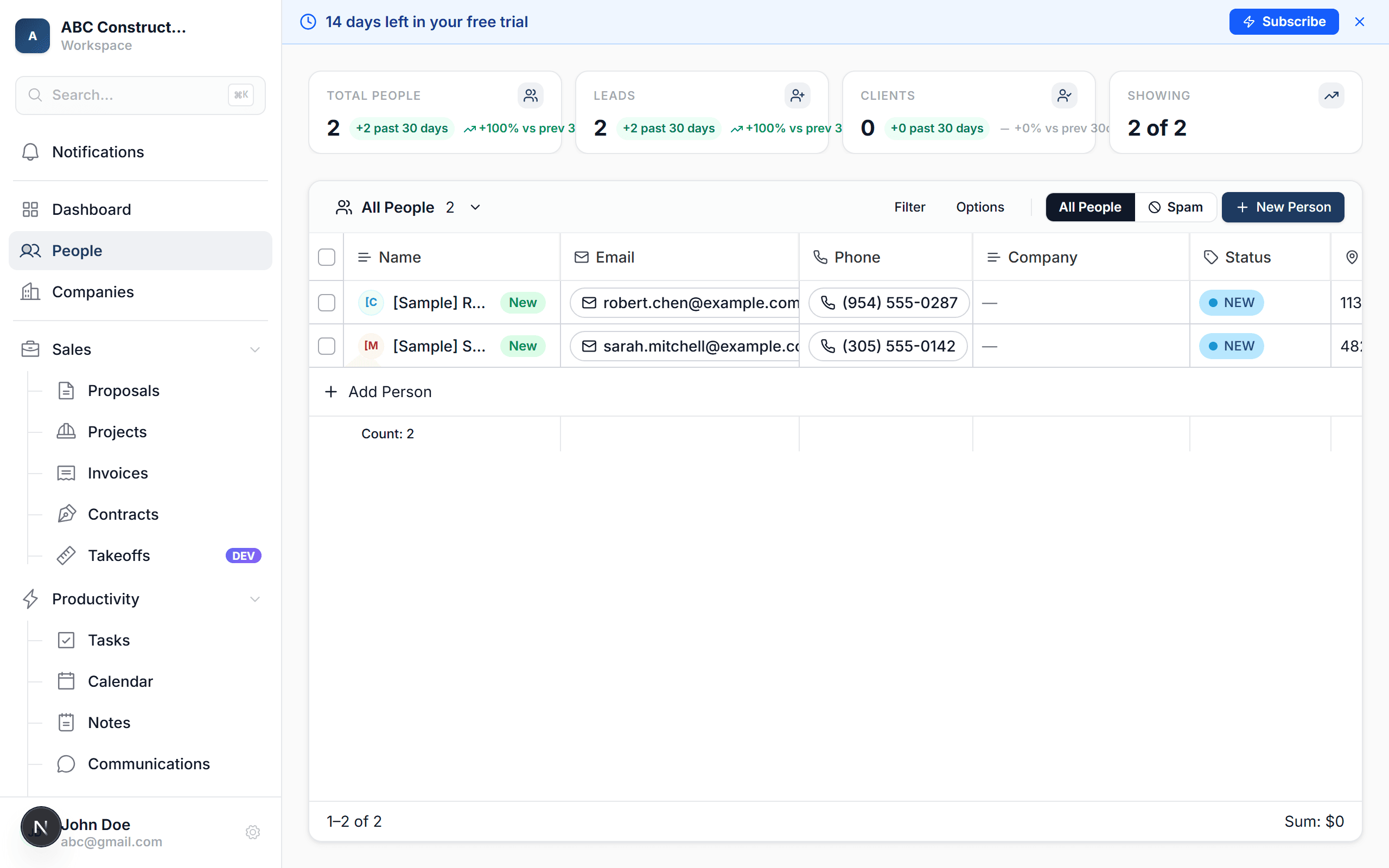
Click "New Person"
It's the blue button in the top-right corner of the page. A form opens on the right side.
Fill in the basics
At minimum, Kaliun needs:
- First name or last name (at least one)
- Email — optional, but recommended so you can send proposals
Everything else (phone, address, company, tags) is optional and can be added later.
Set the status
- Lead — someone you haven't worked with yet (default for new people)
- Client — someone who's hired you
You can change this any time.
Click "Save"
Done. The new contact opens in detail view where you can add more info, send a proposal, or start a conversation.
Tip: if you're adding lots of contacts at once, use the import from spreadsheet flow instead — way faster than one at a time.
What happens next
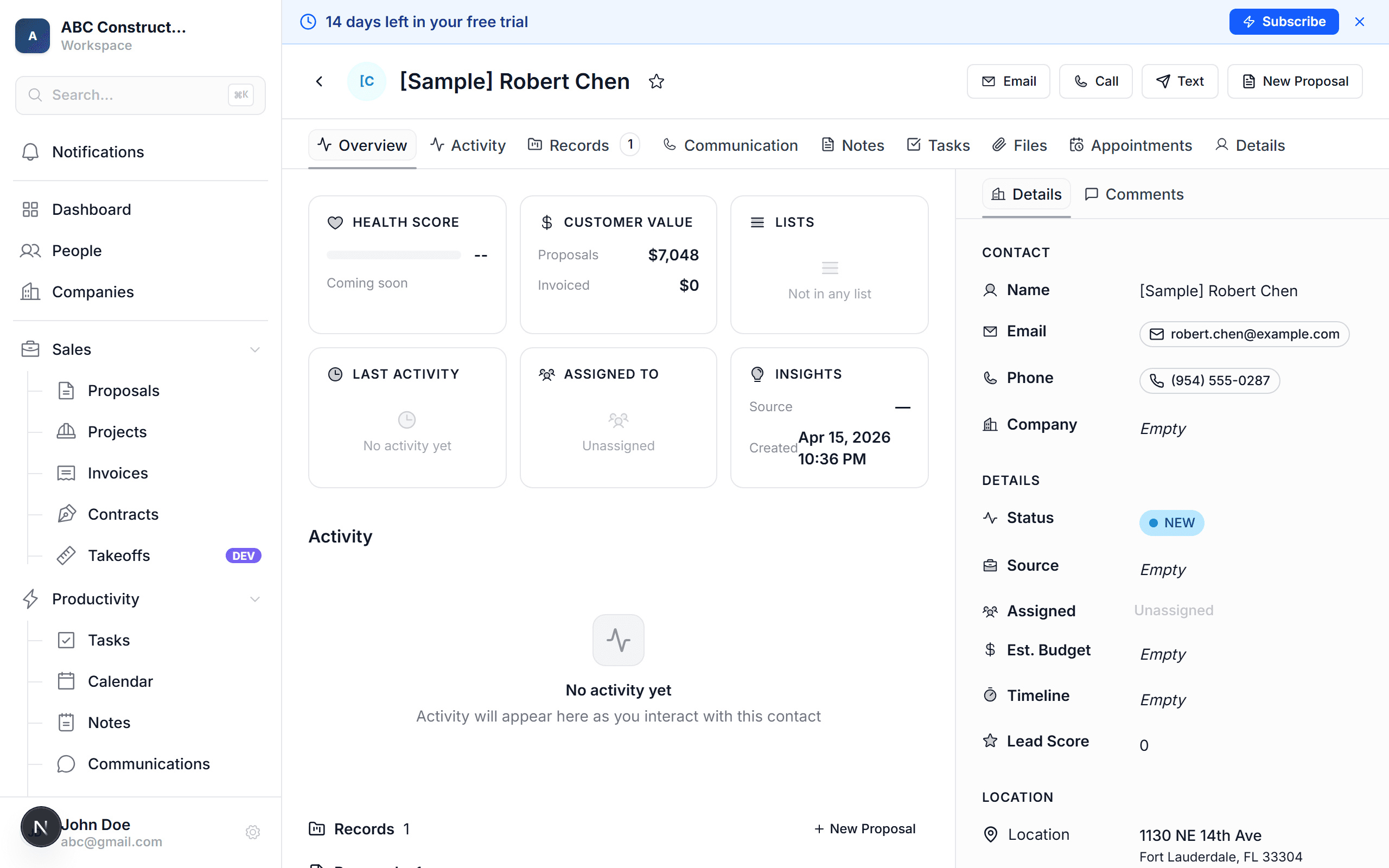
- The contact shows up in your People list
- An activity is logged ("Person created")
- If you added an email, you can immediately send them a proposal
- They're automatically assigned to you (you can reassign later)