How to create a task
Add a to-do item, optionally attached to a contact, project, or proposal.
Tasks are to-dos. They live on their own, but you can optionally link them to a contact, project, proposal, or anything else in Kaliun.
Pick where to create the task
Tasks can be created from lots of places:
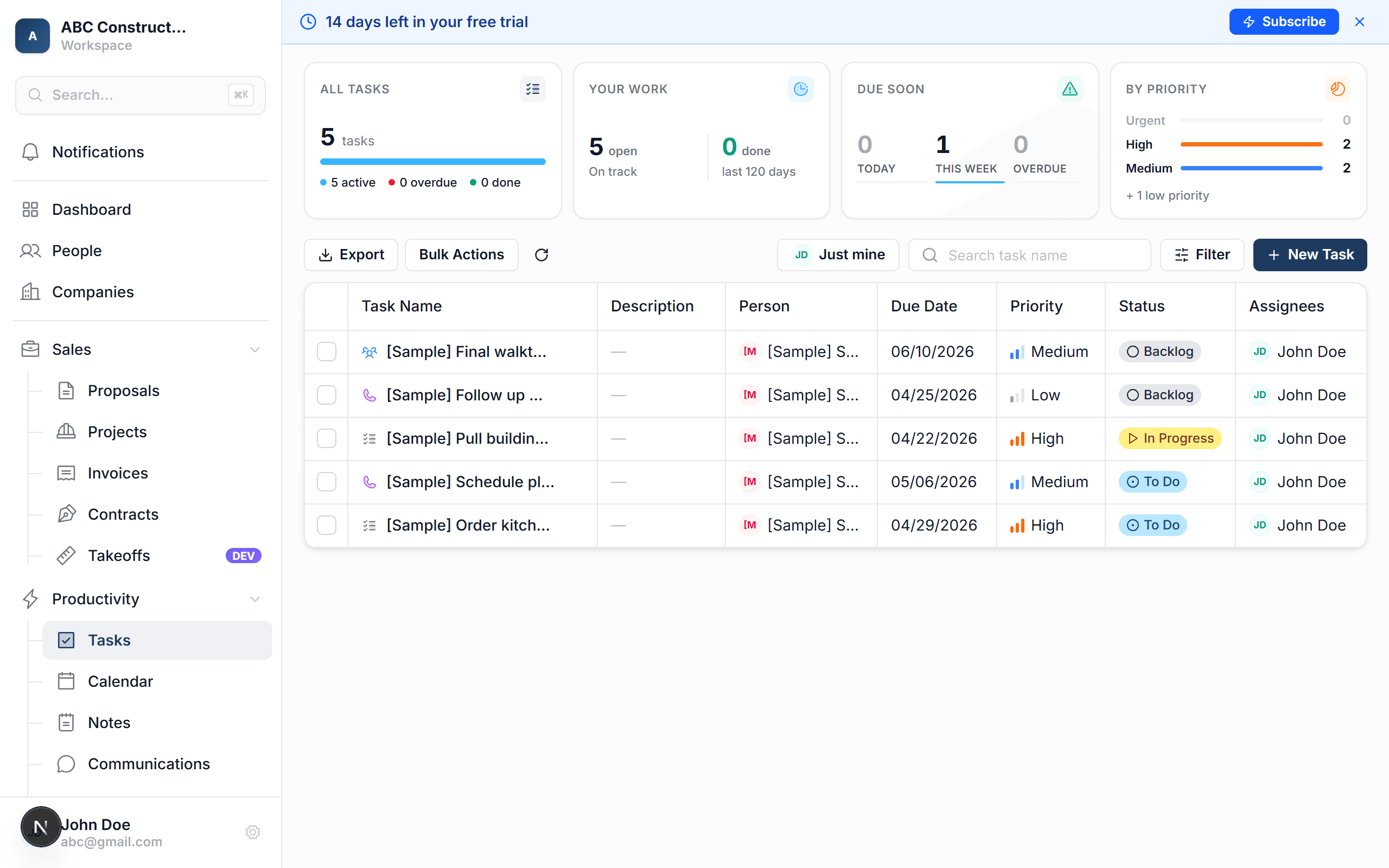
- The Tasks tab — for a standalone to-do
- A Person's detail page — auto-linked to that contact
- A Project's Tasks tab — auto-linked to that project
- A Proposal's detail page — auto-linked to that proposal
Pick whichever makes sense for what the task is about.
Click "New Task"
It's the blue button, top-right.
Fill in the task
- Title (required) — short description: "Call Jane about kitchen proposal"
- Due date — optional but recommended
- Priority — Low / Medium / High / Urgent
- Assignees — who's responsible (defaults to you)
- Description — longer context if needed
Click "Save"
The task appears in:
- Your personal Tasks tab (if assigned to you)
- The Tasks tab of whatever record you linked it to
- The assignee's dashboard
If the due date is today, it'll also appear in the assignee's "Due today" notification.
Completing a task
Click the checkbox next to any task — or swipe right on mobile — to mark it done. Kaliun stamps the completion time and moves it out of active views.
You can also bulk-complete tasks: select several in the table view and click Mark done.
Recurring tasks
For tasks that repeat (weekly check-ins, monthly invoice runs), check Make recurring when creating the task and pick a frequency. Kaliun auto-creates the next instance when you mark the current one done.
Tip: use tasks for soft deadlines ("follow up this week") and calendar events for hard appointments ("site walk at 10am Thursday").