How to automatically follow up on sent proposals
Set up Kaliun to email clients who haven't responded to a proposal.
You send a proposal, the client goes quiet. Instead of remembering to follow up manually, set up Kaliun to send a follow-up email in 3 days if they haven't responded.
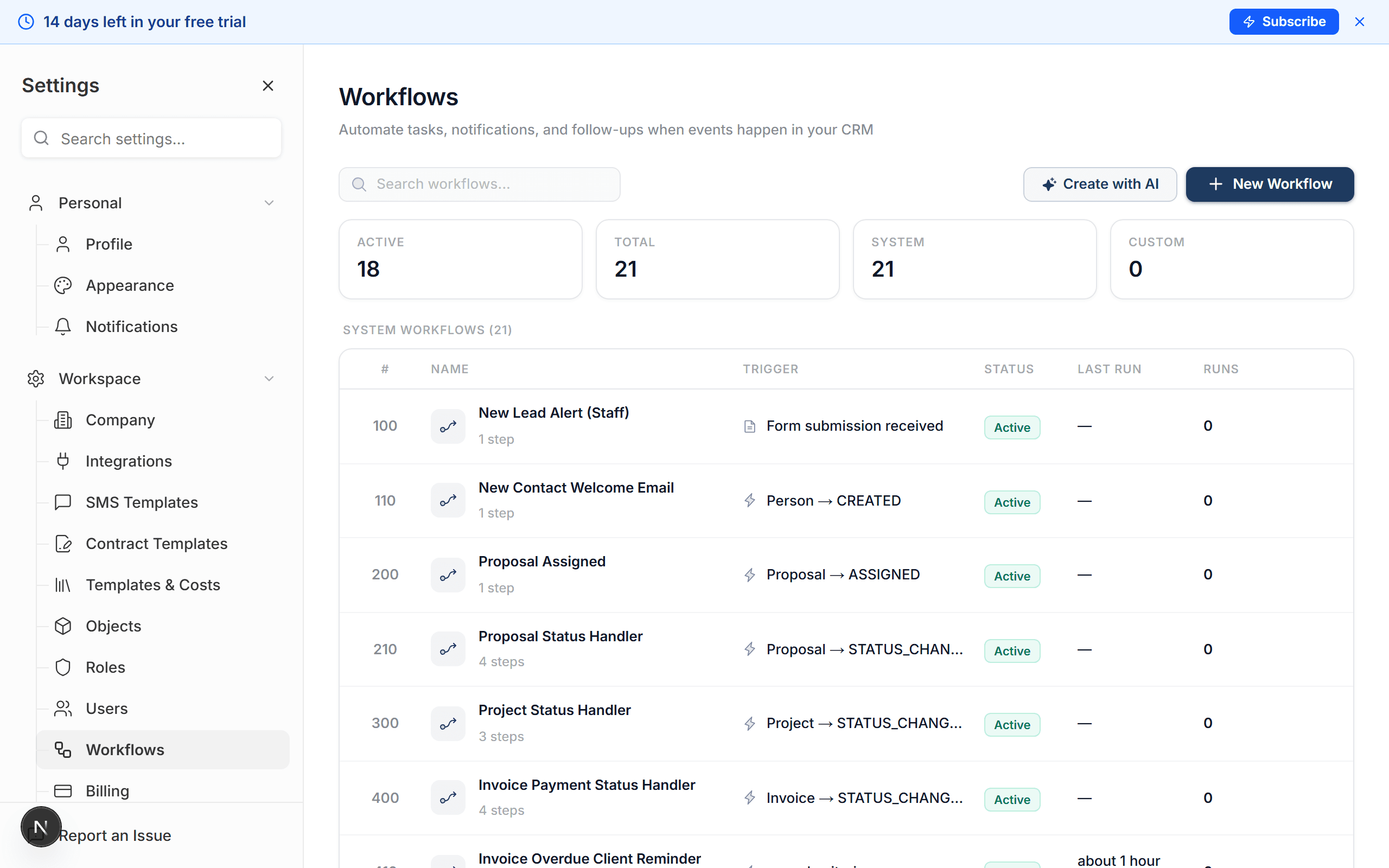
Create a new workflow
Go to Workflows in the main navigation and click New Workflow. Give it a name like "Proposal Follow-Up (3 Days)".
Set the trigger
Choose the trigger When a proposal is sent. This tells Kaliun to start the workflow every time you send a proposal to a client.
Add a wait step
Click Add Step and choose Wait. Set the delay to 3 days. The workflow will pause here before checking on the proposal.
Add a condition
Click Add Step and choose Condition. Set it to check whether the proposal status is still Sent — meaning the client hasn't accepted, declined, or responded yet. If they have responded, the workflow stops here.
Add the follow-up actions
Under the "Yes" branch (status is still Sent), add two actions:
-
Send Email — choose the client as the recipient and write a friendly follow-up message. Something like "Just checking in on the proposal we sent over. Let us know if you have any questions."
-
Create Task — assign it to yourself with a title like "Follow up with client about proposal". This is your safety net in case the email doesn't get a response either.
Save and enable
Click Save, then toggle the workflow to Enabled. It's now active for every future proposal you send.
Want a second follow-up? Add another Wait step (say, 7 days) after the first follow-up, another condition check, and a second email. You can chain as many follow-ups as you like.
What happens next
- Every time you send a proposal, Kaliun starts a countdown
- If the client responds (accepts, declines, or views and replies) within 3 days, nothing happens
- If they don't, Kaliun sends your follow-up email and creates a task for you
- You can see all active workflow runs under the workflow's Runs tab