How to send a proposal to a client
Email a proposal to your client with a secure portal link they can review and accept.
Once your proposal is ready, sending it is one click. The client gets an email with a link to a branded portal where they can review line items, ask questions, and accept.
Open the proposal
From Proposals, click the proposal you want to send. Make sure it's fully ready — once sent, you'll need to create a revision to make changes.
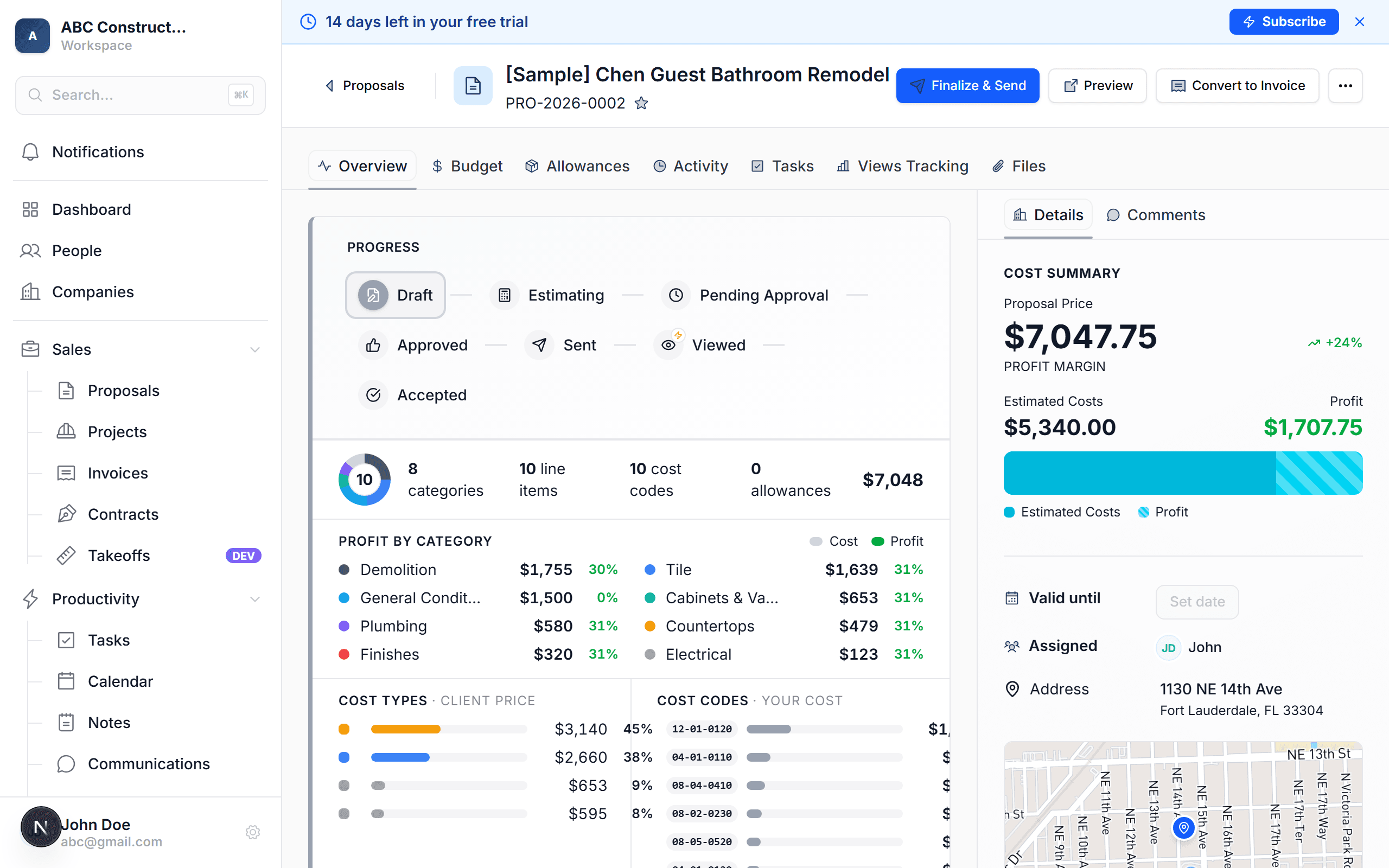
Click "Send"
Top-right of the proposal page, big blue button. A dialog opens to configure the email.
Review the email
Kaliun pre-fills:
- To — the client's email from their contact record
- CC / BCC — optional, add teammates or the spouse
- Subject — "[Your company] proposal: [proposal title]"
- Message — a short default you can edit
Edit any of these before sending. You can also attach a PDF version of the proposal (checked by default).
Click "Send Proposal"
Kaliun:
- Generates a secure portal link for the client
- Sends the email
- Changes the proposal's status from Draft to Sent
- Logs an activity on the contact
- Starts tracking views (you'll see when the client opens it)
You get a confirmation and you're done.
What the client sees
The client clicks the link in the email and lands on a branded portal page with:
- Your logo and company info
- The proposal title and description
- Every visible line item grouped by category
- The total, tax, and payment terms
- Accept and Decline buttons
- A comment box for questions
- Optional e-signature fields if you added them
They don't need a Kaliun account — the URL itself is the auth. See How to set up the client portal for details.
Resending
If the client asks you to resend (or the email got lost), open the proposal and click ⋯ → Resend email. Kaliun generates a fresh email with the same link.
Once sent, the proposal locks. You can't edit line items or pricing without creating a revision. Click ⋯ → Create Revision to unlock a copy for edits — Kaliun keeps the original as v1 and the new edit as v2.