How to track budget vs. actual costs
Use the three-layer job costing view to see exactly where your money is going.
Kaliun tracks your project finances in three layers: what you budgeted (from invoices), what you've committed (from expenses and bids), and what you've actually paid (from payments). The Budget tab brings it all together so you can spot problems before they eat your margin.
Open the project
Go to Projects and click the project you want to review.
Go to the Budget tab
Click the Budget tab. You'll see the Job Costing table with columns for Budgeted, Committed, Actual, and Variance.
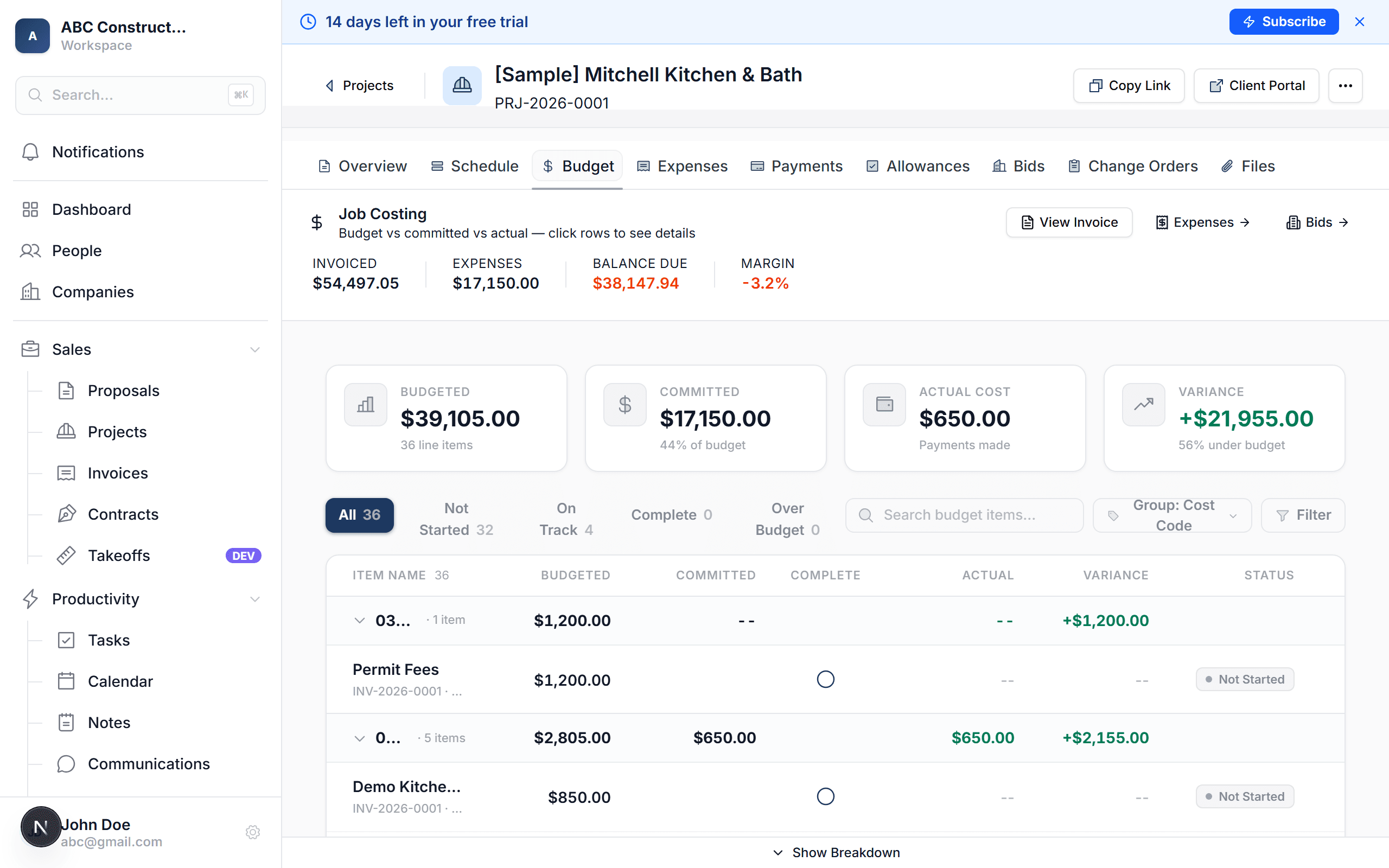
Read the table
Each row represents a cost code or line item. Scan the Variance column to see where you stand. Green means you're under budget. Red means you're over. Zero variance means you're right on track.
Drill into details
Click any row to expand it. You'll see the individual expenses, payments, and bid awards that make up that line. This is where you figure out exactly what pushed a number up or down.
You can set up over-budget alerts using workflows. Create a workflow that triggers when a project expense pushes the committed total past the budgeted amount, and Kaliun will notify you automatically.
What happens next
- The budget updates automatically as you create invoices, record expenses, award bids, and process payments — no manual syncing
- Allowance selections and change orders flow into the budget too, so the numbers always reflect reality
- You can check this tab anytime during the project to make sure you're on track before it's too late to course-correct
How the three layers work
- Budgeted — comes from your invoices. This is what the client is paying you for the work
- Committed — comes from expenses, awarded bids, and allowance selections. This is what you've agreed to pay your subs and suppliers
- Actual — comes from recorded payments. This is what's actually left your bank account
- Variance — the difference between budgeted and committed (or actual). Positive means margin, negative means trouble