How to create an invoice
Create a new invoice for a client from a project or contact record.
Invoices are how you bill your clients. You can create one from scratch or let Kaliun auto-populate it from an accepted proposal.
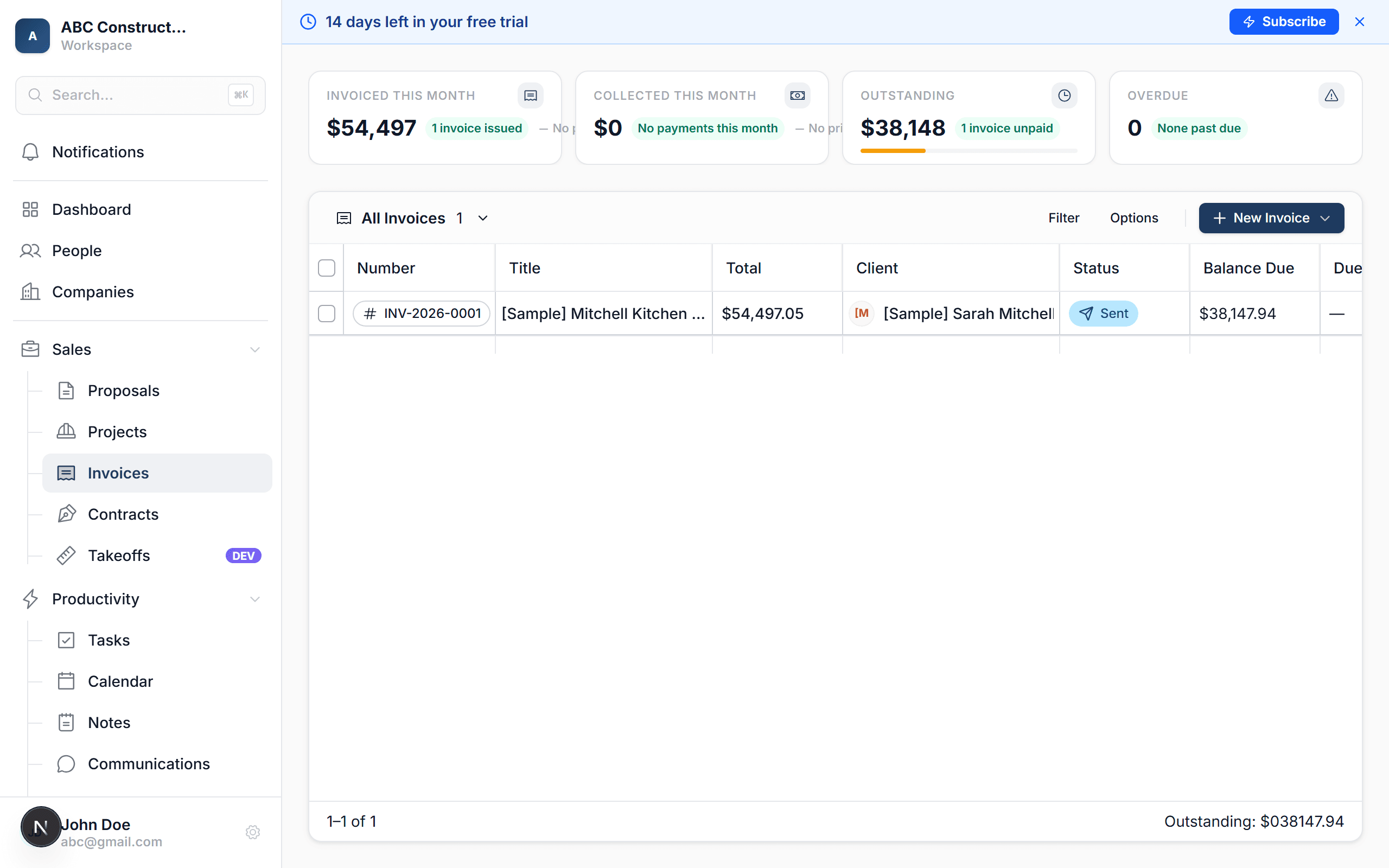
Open the project or contact
Navigate to Projects and open the project you're billing for. You can also start from the client's contact page under People.
Click "New Invoice"
In the project sidebar, click + Invoice. If you're starting from a contact page, you'll find the same button in their sidebar.
If the client already accepted a proposal, Kaliun will ask if you want to pull in the line items automatically. Click Yes to save yourself the data entry.
Add milestones
Each invoice needs at least one milestone. Think of milestones as billing phases — "Deposit", "Rough-In", "Final Payment", etc. Give each milestone a name and the percentage of the total it represents.
Add line items under each milestone
Click into a milestone and add your line items — description, quantity, unit cost, and markup. These are the individual charges your client will see on the invoice.
Set the due date and terms
Pick a due date and choose your payment terms (Net 15, Net 30, or custom). These show on the invoice your client receives.
Save as draft
Click Save. The invoice is created as a Draft — nothing is sent to the client yet. You can review, edit, and adjust before sending.
Tip: if you create an invoice from an accepted proposal, Kaliun copies over all the line items, categories, and pricing. You can still edit anything before sending.
What happens next
- The invoice is saved as a Draft — your client won't see it yet
- The line items feed into the project's budget as "budgeted" costs
- When you're ready, send the invoice to your client via email with one click