How to connect Stripe for client payments
Accept credit card, ACH, and digital wallet payments on every invoice by connecting your Stripe account.
Let your clients pay invoices online. Connecting Stripe takes about five minutes.
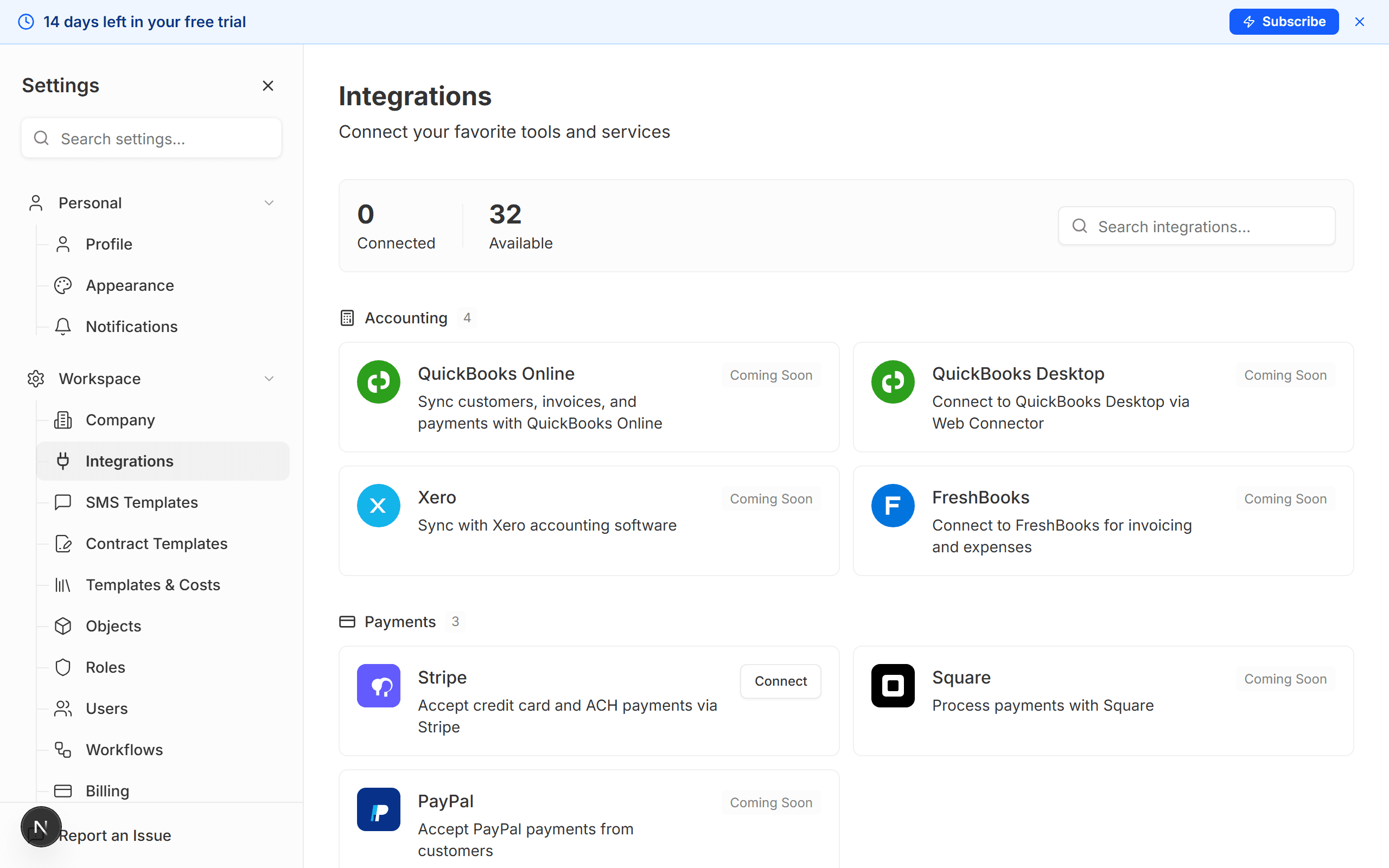
Open the Integrations page
Go to Settings → Integrations and find the Stripe card.
Click "Connect Stripe"
Kaliun redirects you to Stripe's secure sign-in page. Log in with your existing Stripe account, or create a new one right there — Stripe will walk you through it.
Verify your business
Stripe asks for basic details: your legal business name, EIN or SSN, business address, and bank account for payouts. This is a one-time setup.
Return to Kaliun
After you finish on Stripe's side, you're redirected back to Kaliun. The Stripe card now shows a green "Connected" badge with your Stripe account name.
What happens next
- Every invoice you send now includes a Pay Now button in the client portal
- Clients can pay with credit card, ACH bank transfer, Apple Pay, or Google Pay
- When a client pays, Kaliun automatically marks the invoice as paid and logs a payment record on the project
- Payouts land in your bank account on Stripe's standard schedule (typically 2 business days)
Want to test before going live? Toggle Test Mode on the Stripe integration card. You can send test invoices and simulate payments without real charges. Switch back to live mode when you're ready.
Kaliun does not add any markup to Stripe's processing fees. You pay Stripe's standard rates directly — nothing extra from us.