How to create a custom role
Build a role with specific permissions so team members only see and do what they need.
Roles control what a team member can access in your workspace. If the built-in roles don't fit, create your own.
Open the Roles page
Go to Settings → Roles. You'll see the default roles (Admin, Member) plus any custom roles you've already created.
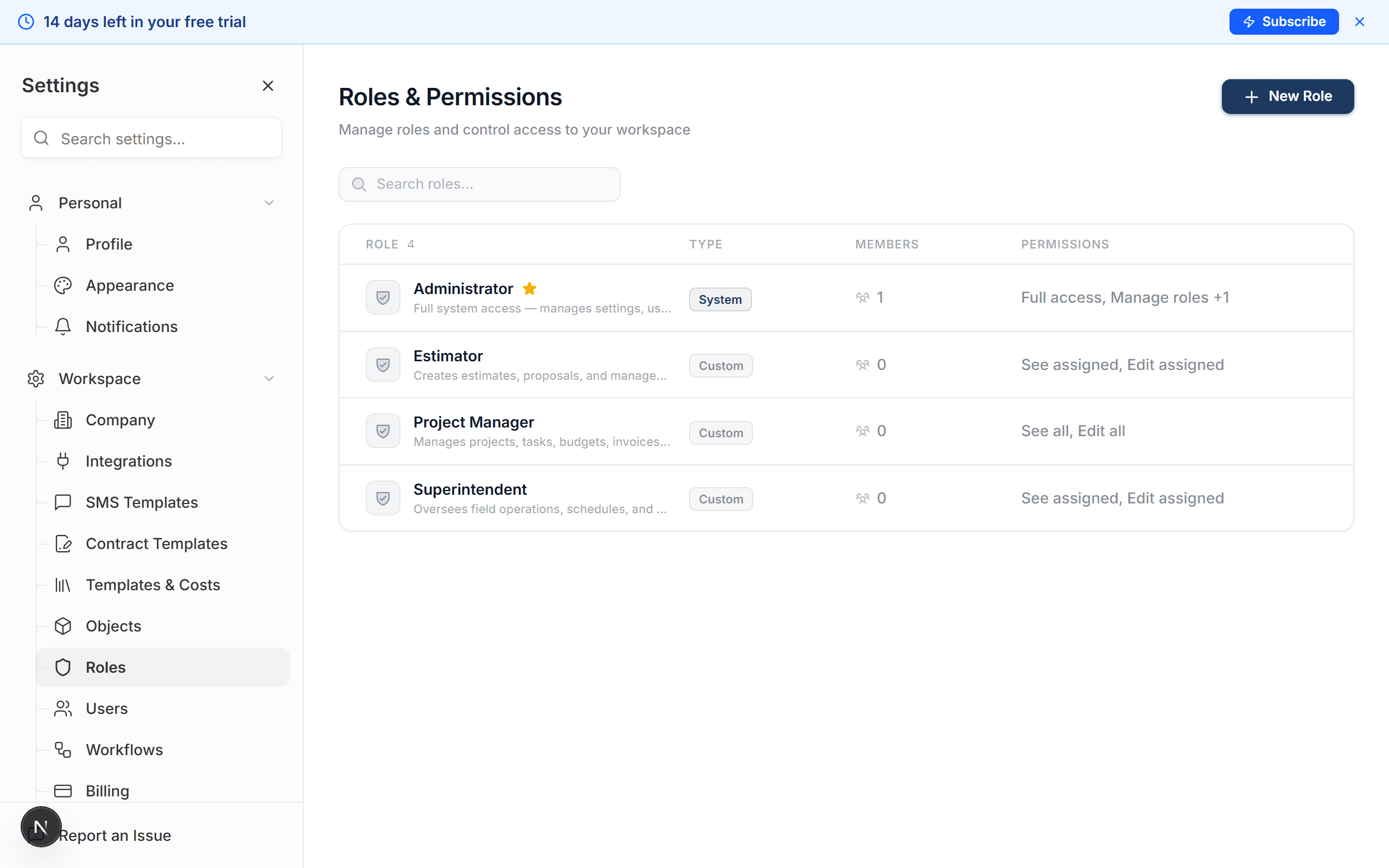
Click "New Role"
Give it a descriptive name — something like "Estimator", "Field Lead", or "Bookkeeper" so you know what it's for at a glance.
Set object permissions
For each object type (People, Proposals, Invoices, Projects, Tasks, etc.), choose what this role can do:
- See — can view records
- Edit — can create and update records
- Delete — can remove records
Leave a checkbox unchecked to deny that action entirely.
Choose the visibility scope
For each object, decide whether the role can see All records or only Assigned records. "Assigned only" is great for field crew who should only see their own projects.
Hide specific fields (optional)
Need to hide sensitive data? Expand any object and uncheck individual fields. For example, hide the "Cost" and "Markup" columns on proposals so an estimator only sees the client-facing price.
Save the role
Click Save. The role is now available when inviting or reassigning team members.
What happens next
- Any team member assigned to this role immediately gets the new permissions — no logout required.
- Hidden fields are completely invisible to that role, both in list views and detail pages.
- You can edit or delete custom roles at any time from the Roles page.
Common role examples:
- Estimator — See and edit People and Proposals. No access to Invoices or project financials.
- Field Lead — See and edit assigned Projects and Tasks only. No access to Proposals or Invoices.
- Bookkeeper — See and edit Invoices and Payments. Read-only access to Projects. No access to Proposals.